What is Microsoft Copilot?
Copilot is Microsoft's AI assistant. There's a free Copilot app for Windows, Mac, iOS, and Android, Copilot is built into the Edge browser, and Microsoft 365 Copilot brings it into Word, Excel, PowerPoint, and Outlook.
Under the hood, Copilot runs on large language models, mostly from OpenAI's GPT family, the same family behind ChatGPT. Microsoft has also added Anthropic's Claude models to parts of Microsoft 365 Copilot. That's why Copilot text often reads like ChatGPT text or Claude text: similar models, similar patterns.
Because it's built into tools people use every day, Copilot text turns up in places other AI text doesn't: meeting summaries, quick replies in Outlook, the first draft of a Word report. Most of that never meets a detector. Essays, client deliverables, and published articles are where one is more likely to come in.
One note: GitHub Copilot, the coding assistant, is a separate product. This page is about written text.
What does Copilot's writing style look like?
In our experience, Copilot drafts share a handful of habits:
- A polished, businesslike tone, even for casual requests
- Bold headings and bullet lists in longer answers
- Source links or numbered references when it searched the web for the answer
- Even, mid-length sentences with stock transitions
- An offer to do more at the end, such as drafting a follow-up or making a table
- Summary openers and recap closers in Word and Outlook drafts
The chat leftovers are easy to delete. The rhythm is the harder part, and it's what detectors measure. Our AI word checker highlights the vocabulary, and the ChatGPT text cleaner removes markdown, hidden characters, and em dashes from any chatbot's output.
Can AI detectors detect Copilot text?
Generally, yes. Detectors don't need to know which assistant wrote a text. They measure predictability, and text from Copilot, ChatGPT, Claude, and Gemini tends to be predictable in the same ways. Scribbr, for one, explicitly lists Copilot among the tools its detector targets (see our guide to Scribbr's AI detector).
So raw Copilot output can be flagged by GPTZero, Turnitin, and similar tools. Our explainer on how AI detectors work covers why.
How do you humanize Copilot output?
- Copy the text out of Copilot, whether that's the app, Edge, Word, or Outlook.
- Remove the extras: footnote markers, source links, headings you don't need, and the closing offer.
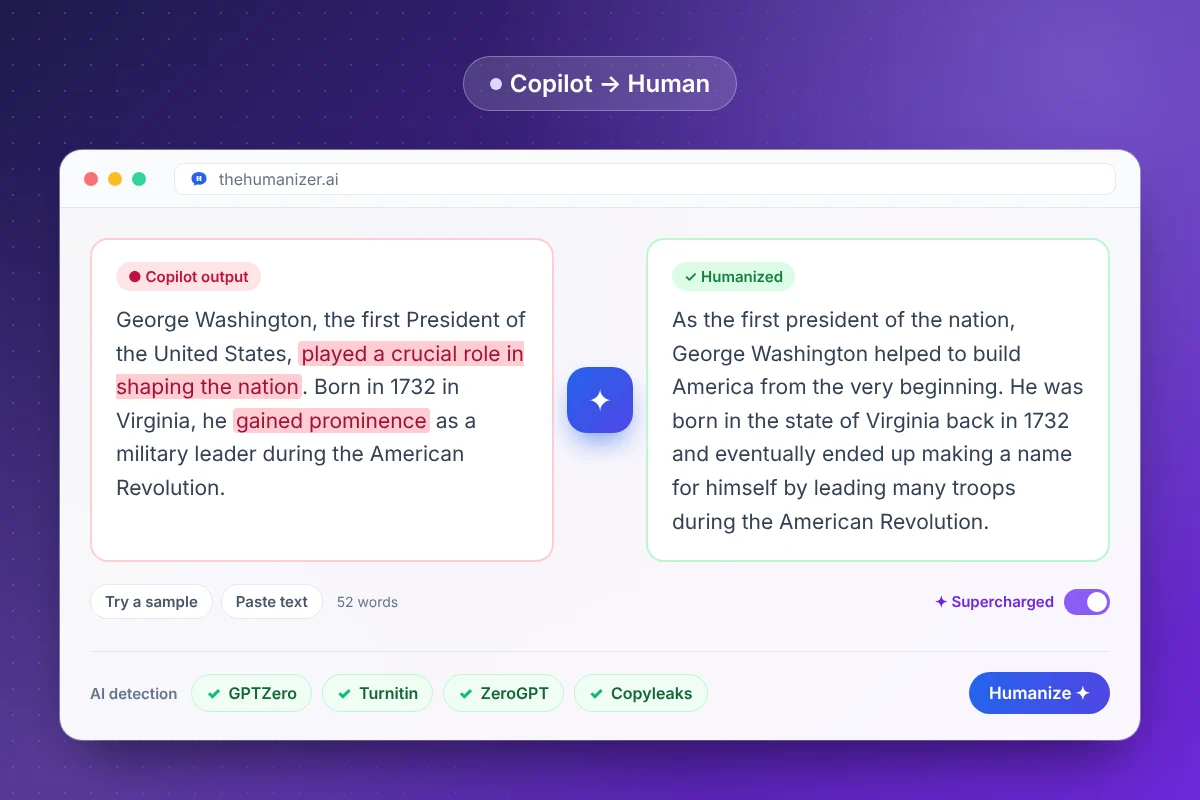
- Paste it into The Humanizer (at least 50 words). Free and Basic take up to 400 words per run; Pro and Ultimate use Supercharged mode for longer documents.
- Click Humanize and check names, figures, and any quotes against the original.
- Check the result with our free AI detector, which estimates AI-likeness from writing patterns, or with the detector your school or client uses.
Working in Word? Paste the humanized text back as plain text so your document's formatting stays the same.
Can you humanize Copilot drafts in Word and Outlook?
Yes, by copying the text out and pasting the result back. A few tips for work writing:
- Emails: very short emails may fall under the 50-word minimum. Humanize the longer ones and edit short replies by hand.
- Reports and proposals: product names and key terms stay in place, and Supercharged mode on Pro and Ultimate keeps the voice consistent across a long document.
- Your employer's rules: if your company has a policy on AI-written content, follow it.
- Schoolwork: if your school gives you Microsoft 365, Copilot may be right there in Word. Check your course's AI policy before using it on graded work. Humanizing doesn't change what that policy allows, and our guide for students covers responsible use.
If you write for clients or publish content, see our guides for marketers and writers.
Does it matter which model is behind Copilot?
Not for humanizing. Microsoft can change the models Copilot uses, but the patterns detectors look for are shared across models, and The Humanizer works on text from any of them. What does change between assistants is the surface: Copilot's footnotes and business tone, ChatGPT's stock transitions, Claude's careful hedging. Clean those up first, then let The Humanizer handle the rhythm underneath.
If you switch between assistants, we have guides for Gemini, DeepSeek, and Grok too.