Why do AI LinkedIn posts all sound the same?
Ask ChatGPT, Claude or Gemini for a LinkedIn post and you'll often get the same template:
- Announcement openers like "I'm thrilled to share..." or "I'm humbled to announce..."
- One sentence per line, all the way down, whether or not it helps
- The lesson arc: a setback, a turning point, then three neat takeaways
- Big abstract claims ("Great teams are built on trust") with no example behind them
- Stock closers such as "Agree?" or "What are your thoughts?", followed by a wall of hashtags
- Em dashes and emoji bullets carried over from the chat window
Our AI word checker highlights the vocabulary, and the ChatGPT text cleaner strips em dashes and markdown. Wondering where the dashes come from? See why ChatGPT uses em dashes.
Can people tell a LinkedIn post was written by AI?
Often, especially when a post follows the usual template. Originality.ai, a company that sells an AI detector, estimated that 81.2% of the 5,000 public LinkedIn posts of 100 words or more it sampled in July 2026 were likely AI-generated. It's one vendor's estimate, but it explains why a templated post blends into the feed.
LinkedIn has responded too. In 2026 it added a "Seems like AI slop" option to the post menu, and its Chief Product Officer, Hari Srinivasan, said in August 2026 that members were seeing 40% fewer views on what LinkedIn classifies as AI slop than a few weeks earlier. LinkedIn hasn't published exactly how it defines slop. Either way, the fix is the same: make every post specific and worth reading. Our free AI detector gives a quick read on how machine-like a draft sounds.
How do you humanize a LinkedIn post?
- Start with something real: a project, a mistake, a number. Give the AI your notes, not just a topic. Our ChatGPT prompt generator helps you build a prompt around them.
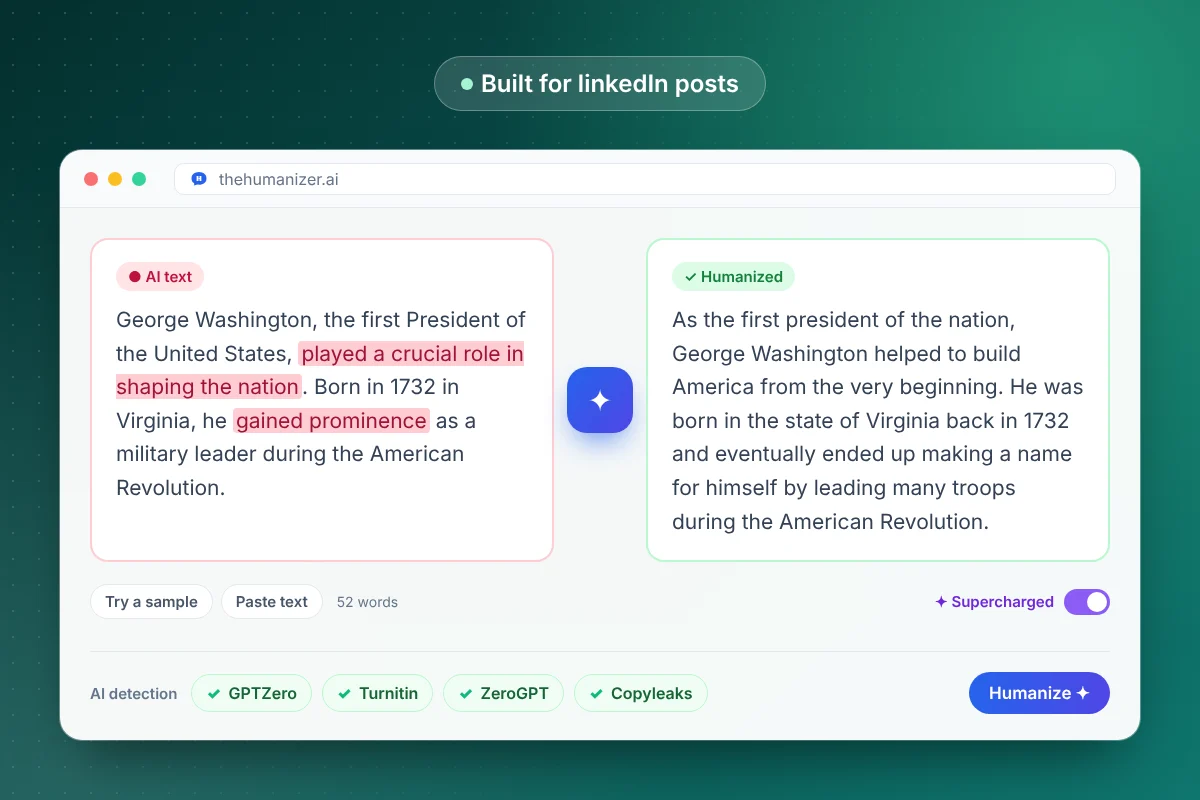
- Paste the draft into The Humanizer as plain paragraphs. Each run needs at least 50 words, and Free and Basic take up to 400 words per run. LinkedIn posts can be up to 3,000 characters, according to LinkedIn Help, so a long post can run past 400 words. Pro and Ultimate handle those in one pass with Supercharged mode.
- Click Humanize and check that names, numbers and job titles came through unchanged.
- Rewrite the first line yourself. It's what people see before "see more".
- Add your line breaks back, then read it aloud. Cut anything you wouldn't say to a colleague.
Drafting with ChatGPT? See our guide to humanizing ChatGPT text.
How do you write a LinkedIn hook that doesn't sound like AI?
Make it concrete. A good first line has a detail in it: a number, a place, a name or a moment. Compare:
| AI-sounding line | More human version |
|---|---|
| I'm thrilled to announce I've joined Acme as Head of Growth! | Three years ago Acme turned me down. On Monday I start there as Head of Growth. |
| Great leaders put their people first. | My best manager blocked an hour every Friday to ask what was slowing us down. I still do it. |
| Here are 5 lessons I learned from failing: | Our first launch got 11 signups. Here's what we changed before the second one. |
| What are your thoughts? Let me know below! | Has a project of yours ever improved after it was cut in half? I'd like to hear how. |
The examples are made up, but the pattern holds. The human version is specific, a little uneven, and only fits one person's story. The Humanizer fixes the rhythm. The details have to come from you.
Should you keep the line breaks, emojis and hashtags?
Keep them where they help a reader, not because the template says so.
- Line breaks: short paragraphs read well on a phone, but one sentence per line for a whole post looks templated. Mix short and medium paragraphs.
- Hashtags: a few relevant ones at the end. A wall of them looks automated.
- Emojis: use them if you'd use them in a message to a colleague. Skip the emoji bullets.
Humanize the post as a few normal paragraphs first, then format it for LinkedIn. The Humanizer keeps your paragraph count, and our sentence length checker shows whether your rhythm is still too even.
Is it OK to use AI for LinkedIn posts?
Generally, yes, with one condition: everything in the post has to be true. The story happened, the numbers are real and the opinion is yours. If your employer has a social media or AI policy, follow it. Posting for a client or a company page? See our guides for marketers and for writers.
If English is your second language, a humanizer can help your posts read fluently without changing what you mean (see our page for ESL writers). Job hunting? The same approach works on AI cover letters.